WeldNext Studio

Turn your own CAD data into training workpieces.

For customers using WeldNext+, CAD data (STEP / IFC) can now be used in WeldNext from Ver. 2.0.0, released in August 2026.
Using the dedicated WeldNext Studio application, you can transfer the data to the headset via USB and train with your actual data.

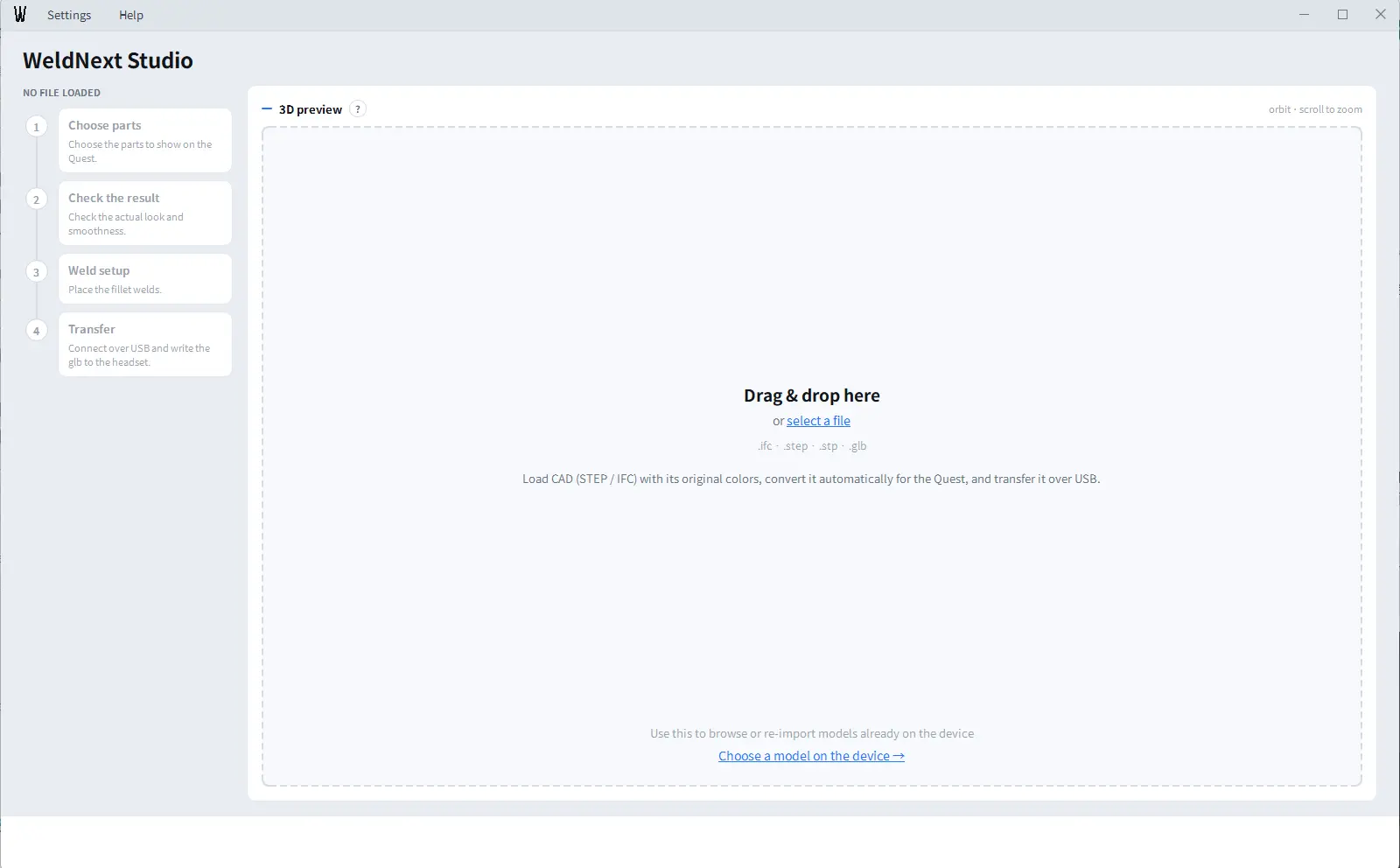
The model editing screen of WeldNext Studio

SCREENSHOTS

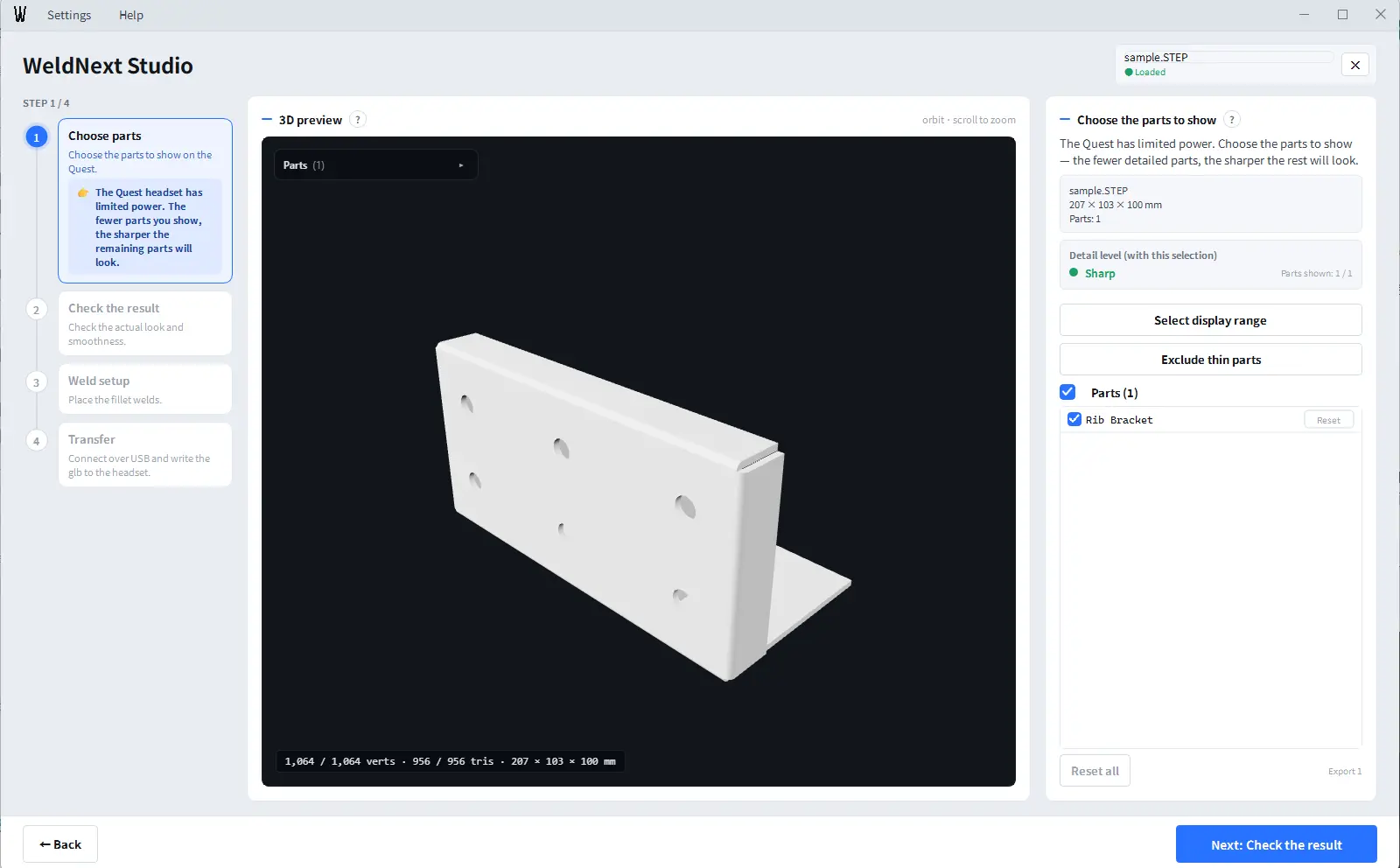
Load a CAD file by drag and drop
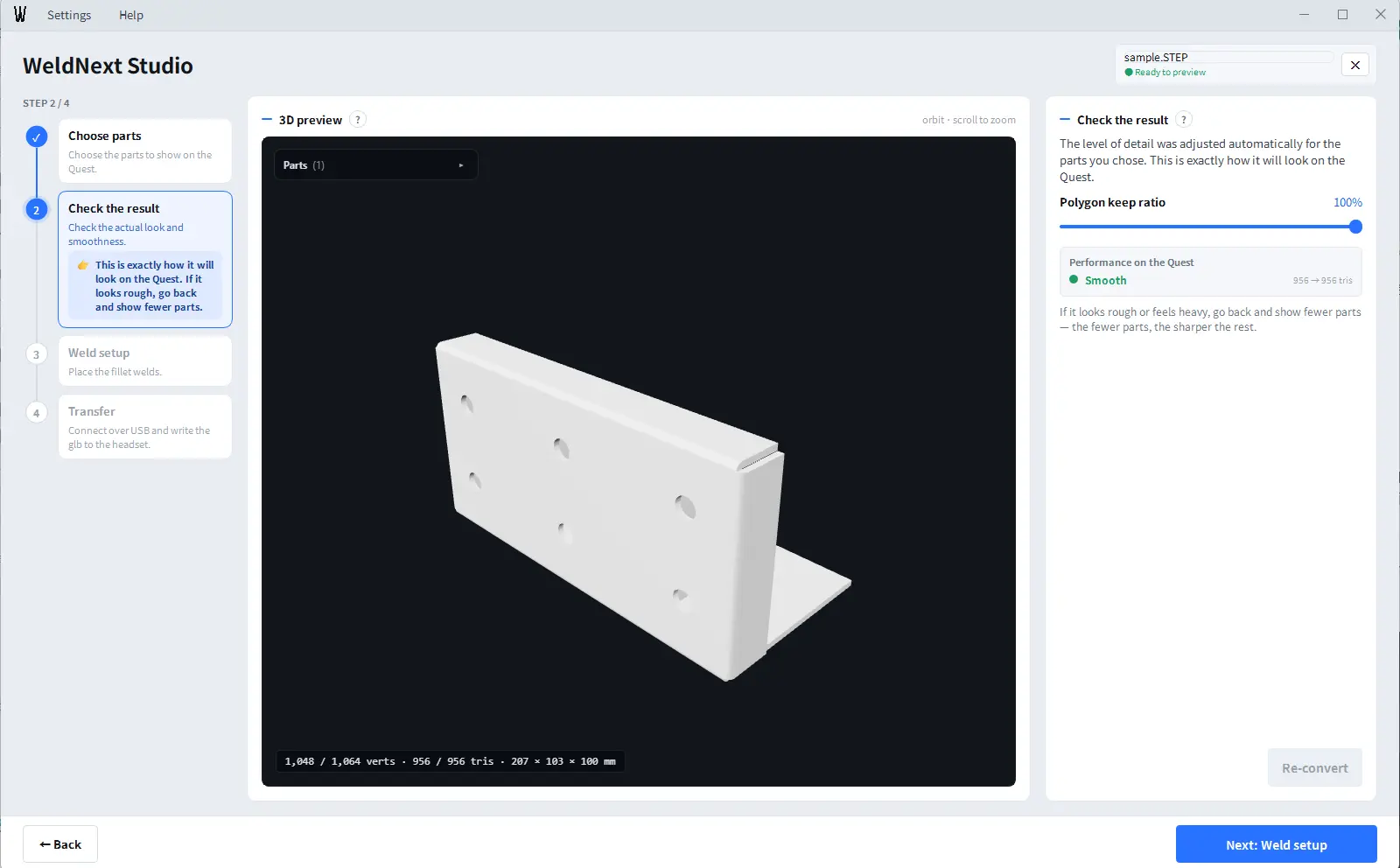
Use 3D Preview to check how the finished model will appear in Quest
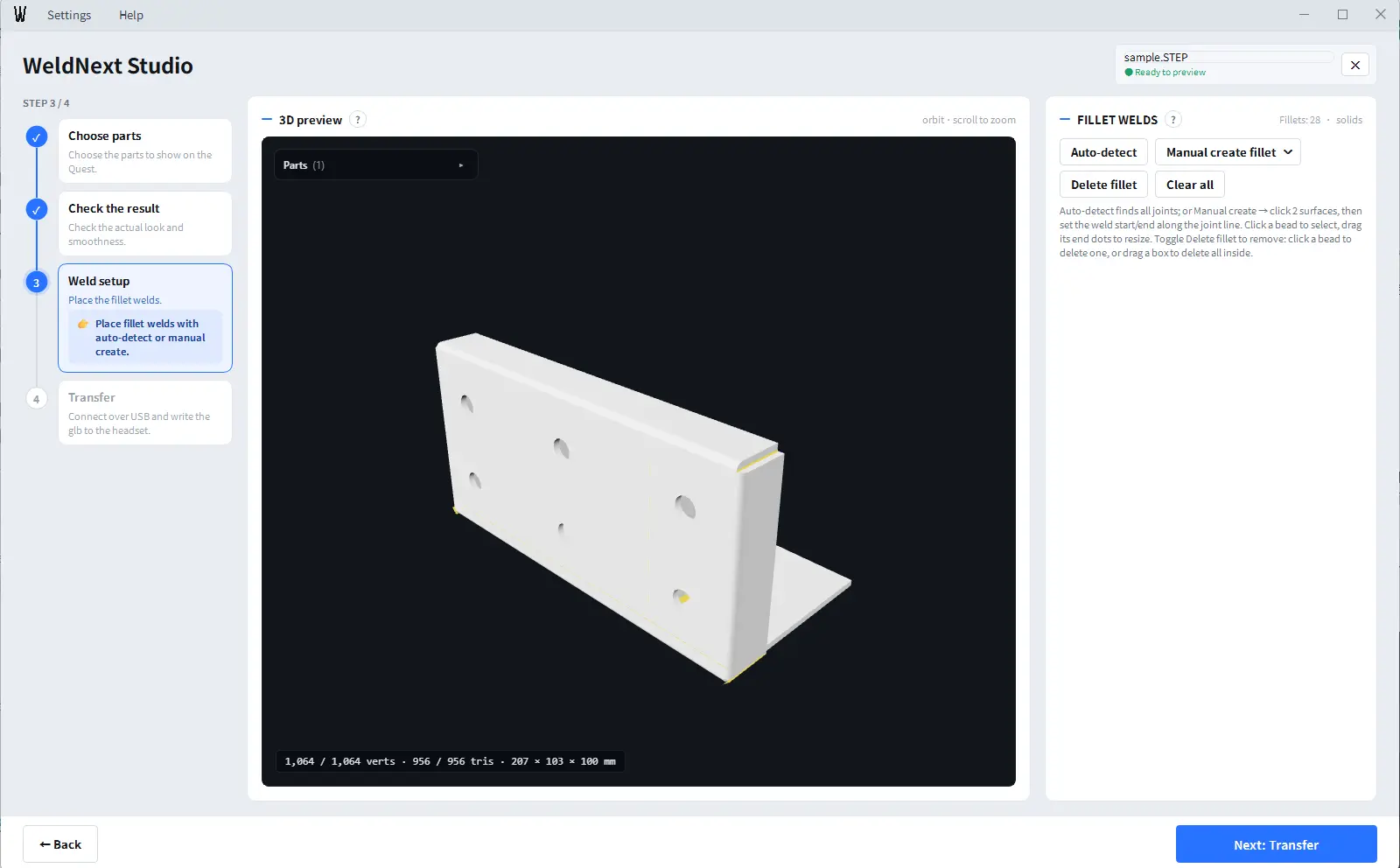
Mark weldable parts and place fillet welds
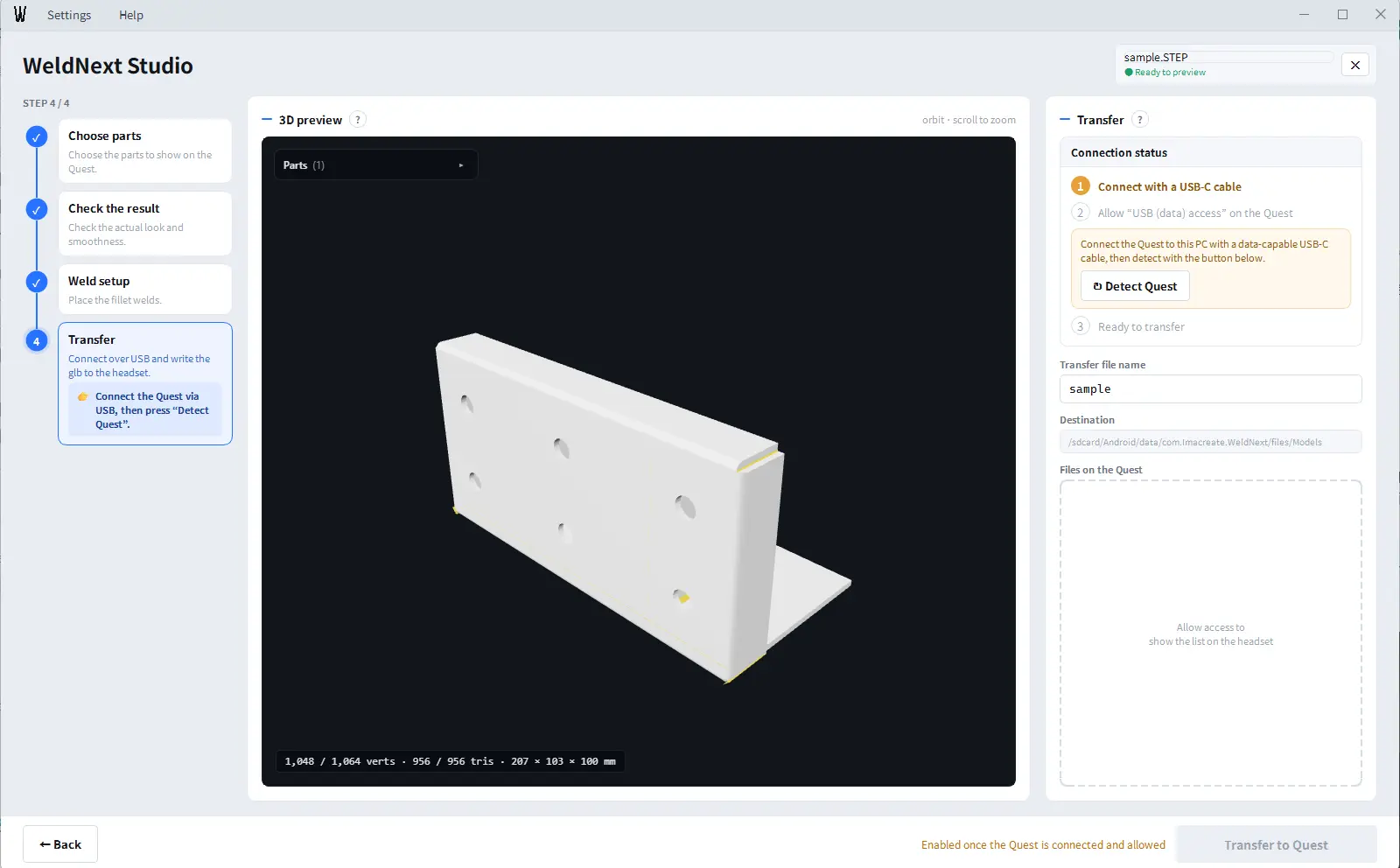
Detect the Quest over USB and transfer

* The screens shown here may differ depending on the version of the app.

FEATURES

01

Import CAD data with automatic optimization

Supports STEP and IFC. When you drag and drop a file, settings are automatically adjusted for smooth performance based on the selected parts. You can narrow down the parts to display by hiding them in bulk, selecting an area with a frame, or excluding thin plates in bulk.

02

Specify where to weld

Place fillet welds. Automatic detection finds the seams where parts meet and places weld lines in one go, and anything it misses can be added by hand. The weld lines you place appear as weld beads on Quest.

03

Transfer to Quest over USB

Connect a USB-C cable, detect the headset, name the file, and transfer. No developer mode setup is needed.

04

Pull transferred models back

From the list of files on the Quest, you can pull a transferred model back to your PC and edit it again — adjust weld lines, optimize further, and transfer it once more.
DOWNLOAD

Windows

Version
1.0.0
File size
388 MB
Release date
2026.08.18

WeldNext_Studio_v1.0.0.zip

File Hash (SHA-256)8D0F9A1C41B07A564EAE194A182D05EC7D51940B3EA95AD2B12B01D74F9A47B0

System requirements

OSWindows 11 (64-bit)
CPU
Intel Core i5-12400 / AMD Ryzen 5 5600X, or an equivalent or higher-performance processor
  • CAD import, simplification, and compression are single-threaded processes. More cores will not make them faster.
  • Automatic detection of fillet welds (STEP format) becomes faster with more cores.
Memory32 GB or more
GraphicsDirectX 11 compatible (integrated graphics supported; no discrete GPU required)
Storage2 GB for installation
InternetNot required (runs offline)
ConnectionOne USB port (for Meta Quest connection)
  • A USB cable that supports data transfer is required to connect to Meta Quest. Charge-only cables cannot transfer data.
  • The initial launch may take longer because your antivirus software scans the application. If “Windows protected your PC” appears, select “More info” and then “Run anyway.”
  • Detailed instructions are available from the “Help” menu in the app’s title bar.